windows定时任务执行Python脚本
安装插件库
python.exe -m pip install selenium
python.exe -m pip install pillow
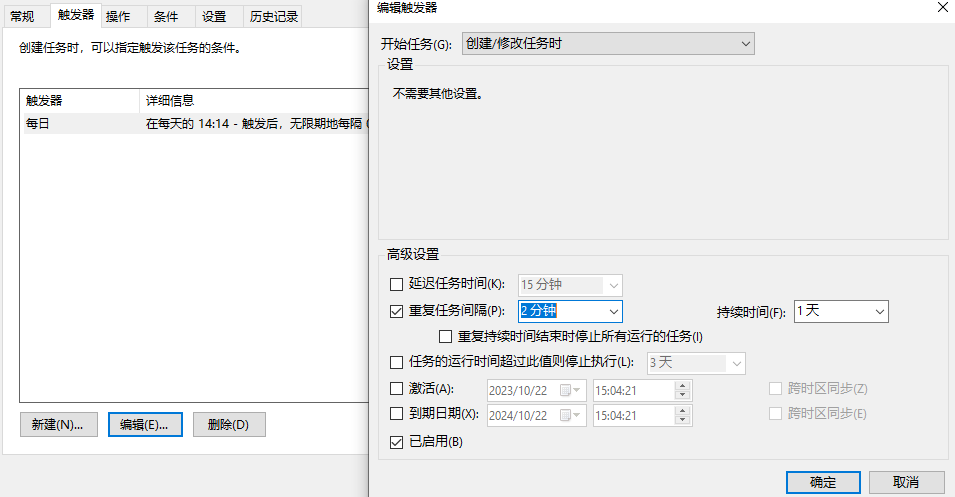
创建定时任务
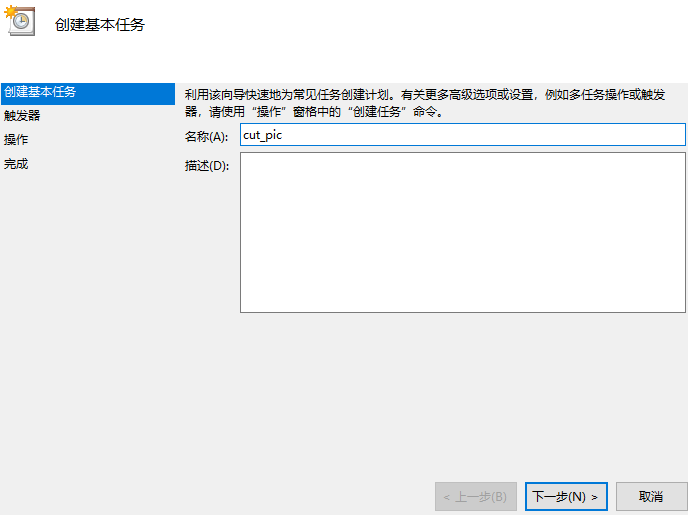
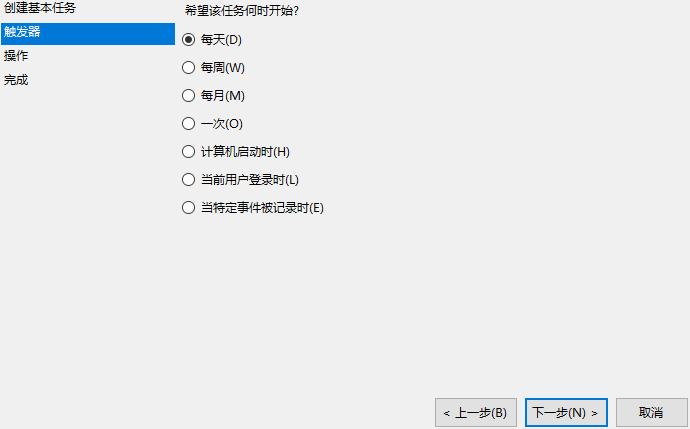
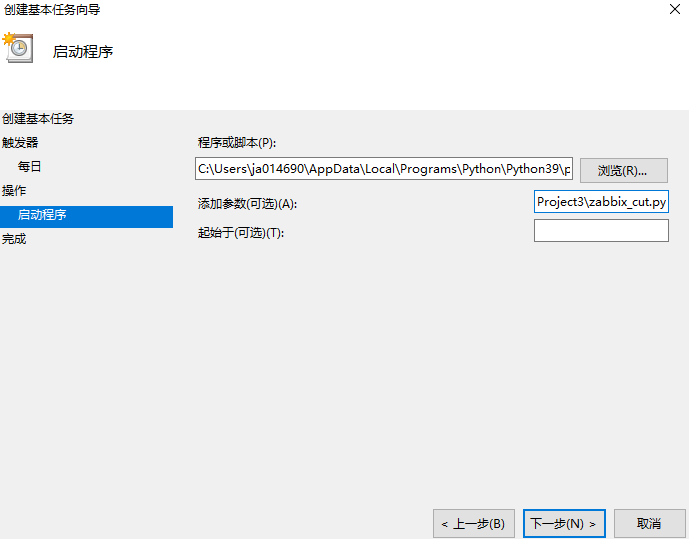
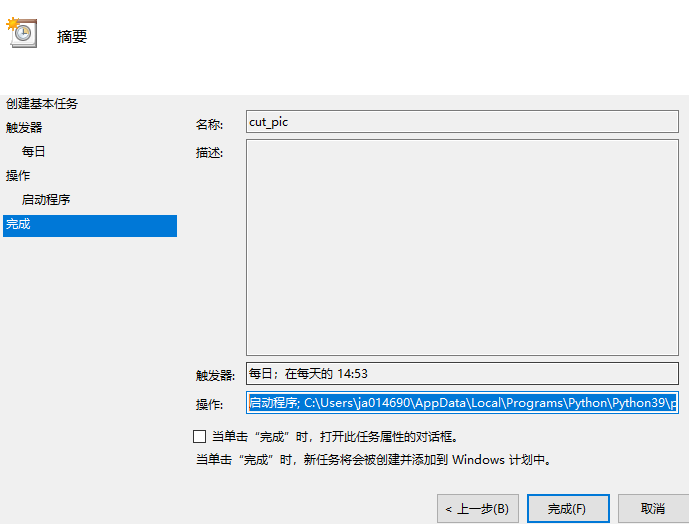
在触发器上调整每间隔多长时间执行一次
截图脚本
import selenium
from selenium import common
from selenium import webdriver
from selenium.webdriver.common.by import By
from PIL import Image
from io import BytesIO
import time

# 创建Chrome浏览器驱动
driver = webdriver.Chrome()
driver.maximize_window()
# driver.minimize_window()

# 打开网页
driver.get('http://172.30.7.23/index.php')
print('网页打开')
# time.sleep(3)

# 找到用户名和密码的输入框,并输入登录信息
print('找到用户框')
username_input = driver.find_element(By.ID, 'name')
print('找到密码框')
password_input = driver.find_element(By.ID, 'password')
print('输入用户')
username_input.send_keys('Admin')
print('输入密码')
password_input.send_keys('zabbix')

# 找到登录按钮,并点击登录
print('开始登录')
login_button = driver.find_element(By.ID, 'enter')
login_button.click()

# 等待登录完成,可以根据实际情况调整等待时间
driver.implicitly_wait(10)

# 点击页面顶部按钮
print("点击监测")
t_Button_header = driver.find_element(By.CLASS_NAME, 'icon-monitoring')
t_Button_header.click()

# 点击页面左边菜单按钮
print("点击拓扑图")
t_Button_header = driver.find_element(By.LINK_TEXT, '拓扑图')
t_Button_header.click()
driver.implicitly_wait(10)

# 点击页面左边菜单按钮
print("点击所有地图")
try:
    t_Button_header = driver.find_element(By.LINK_TEXT, '所有地图')
    t_Button_header.click()
    driver.implicitly_wait(10)
except selenium.common.exceptions.NoSuchElementException as e:
    print("找不到关键字所有地图")

print('点击test地图')
# 点击页面左边菜单按钮
t_Button_header = driver.find_element(By.LINK_TEXT, 'test')
t_Button_header.click()
driver.implicitly_wait(10)

# 使用id属性定位要截取的元素
print('显示业务地图')
element = driver.find_element(By.ID, 'flickerfreescreen_mapimg')
time.sleep(5)
# element = driver.find_element(By.CLASS_NAME, 's_ipt')
print('位置大小')
# 获取元素的位置和大小
location = element.location
size = element.size

# 截取整个页面的截图
print('截取页面图片')
screenshot = driver.get_screenshot_as_png()

# 将字节流转换为Image对象
image = Image.open(BytesIO(screenshot))

# 根据元素的位置和大小,截取指定区域的图片
print('元素的位置和大小')

x = location['x']
y = location['y']
width = size['width']
height = size['height']
crop_image = image.crop((x, y, x+width, y+height))

# 保存截取的图片
print('保存截取的图片')

crop_image.save('d:/cropped_image.png')

# 关闭浏览器驱动
driver.quit()